Does Your Car Support Wireless CarPlay? How to Check
Wireless CarPlay works only if the car’s infotainment system supports it. Many cars offer wired CarPlay only, and wireless setup usually needs both Bluetooth and Wi‑Fi built into the head unit. If you assume support, you can waste time pairing, buy the wrong stereo, or miss a trim-level difference. This guide shows how to verify support from the car, the iPhone, the USB port, and the listing or trim sheet before you troubleshoot or spend money.
What you’ll need
- An iPhone with CarPlay support
- Access to the car screen and settings
- The owner’s manual, window sticker, or trim sheet
- A USB cable, only if you need to test a wired data port
Wireless CarPlay checklist
Start with the car, then the phone, then the port. A yes at every step points to wireless support. A no at any step usually means the car may have wired CarPlay, a charge-only USB port, or no CarPlay support. Bluetooth audio alone does not prove CarPlay support.
| Vehicle screen signs | iPhone settings | USB-port behavior | Test-result outcome |
|---|---|---|---|
| CarPlay icon appears in the phone, connection, or apps menu | Settings > Bluetooth shows the car name | Port carries data, not only power | CarPlay is present; continue to wireless check |
| Wireless setup prompt appears on the infotainment screen | Settings > Wi-Fi and Bluetooth are both on | USB is optional for charging only | Wireless CarPlay is likely supported |
| No CarPlay menu, only Bluetooth audio | CarPlay prompt never appears | USB port charges but does not connect data | No CarPlay support or wrong port |
| CarPlay works once by cable, then fails wirelessly | CarPlay is listed, but wireless prompt never returns | Car reconnects only with a cable | Wired CarPlay only, or wireless disabled in settings |
| CarPlay reconnects after ignition cycle without cable | iPhone reconnects to the same car automatically | USB cable not needed for the session | Wireless CarPlay is active |
The car screen is the fastest proof. If the infotainment system never offers CarPlay setup, wireless support is unlikely. If it offers CarPlay but never mentions wireless, the vehicle may be wired only, even when Bluetooth audio works normally.
- Open the infotainment system’s phone, connection, or device menu.
- Look for CarPlay, Apple CarPlay, or smartphone integration rather than Bluetooth audio alone.
- Check for a wireless pairing prompt, pairing confirmation screen, or a setting that says wireless CarPlay.
- Turn the vehicle off, restart it, and see whether the car offers the same wireless prompt again.
What the car screen should show
A supported head unit usually gives a CarPlay pairing prompt, a device list with the car name, or a menu that switches between the native infotainment system and CarPlay. Apple lists wireless connectivity as a CarPlay feature for automakers, but that support can vary by model year, trim, and software.
Say your sedan shows a Bluetooth phone list, navigation, and radio, but no CarPlay item anywhere in Settings. That points to a non-CarPlay system, or a trim that lacks the feature even though other trims have it.
How to verify support from the iPhone side
The iPhone has to see the car as a CarPlay partner, not just a Bluetooth speaker. Wireless CarPlay setup usually requires Bluetooth to be active, and pairing may also trigger a Wi‑Fi-related prompt on the phone. If the phone never offers CarPlay, the car is probably not advertising it correctly.
- Open Settings > Bluetooth and turn Bluetooth on.
- Open Settings > General > CarPlay and look for the car name.
- Check whether the iPhone shows a pairing prompt when the car is in setup mode.
- After pairing, turn the car off and back on to see whether the connection returns automatically.
Does wireless CarPlay work with Bluetooth?
Yes, Bluetooth must be active on both the iPhone and the car for wireless setup. Wireless CarPlay is not the same thing as Bluetooth audio. Bluetooth helps with pairing and discovery, while CarPlay is the interface that moves directions, messages, and music onto the car screen.
What if the iPhone only shows wired CarPlay?
That usually means the phone has found a CarPlay-capable car, but the vehicle is not advertising wireless support. The next check is the car screen and the trim sheet. If the same model line offers both wired and wireless versions, software or trim can explain the difference.
How to check the USB port and trim
Some cars use a USB port to start CarPlay, and some ports are charge only. A charge-only port can power the phone but cannot carry the data CarPlay needs. Port icons, labels, and owner’s-manual notes matter here. (Motortrend)
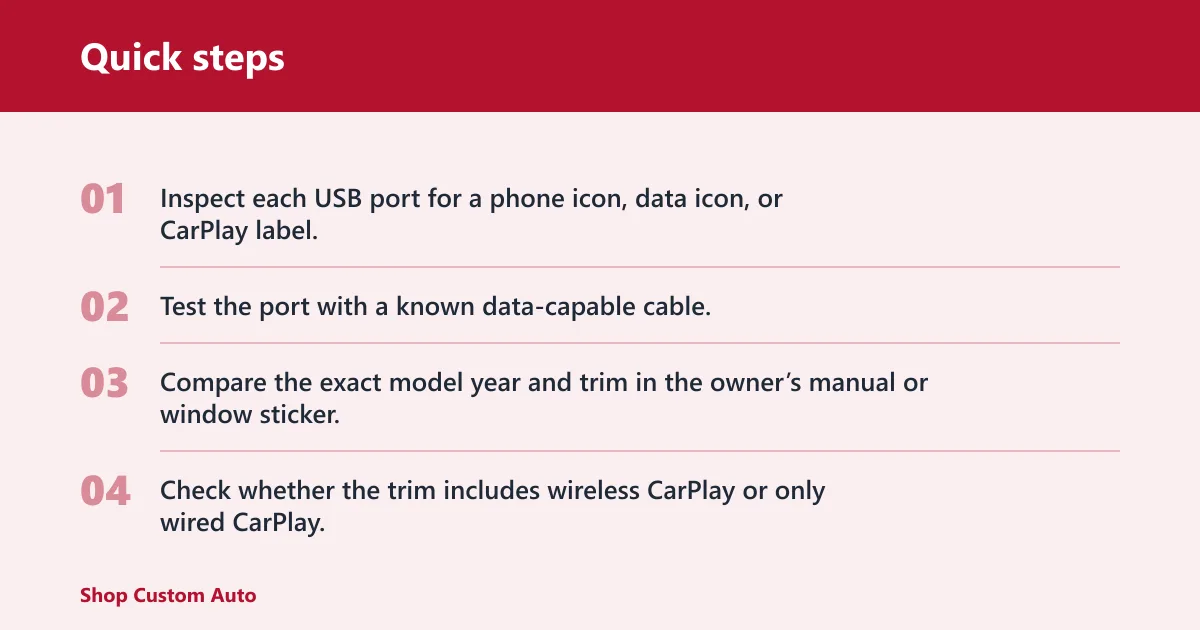
- Inspect each USB port for a phone icon, data icon, or CarPlay label.
- Test the port with a known data-capable cable, then look for a CarPlay prompt on the screen.
- Compare the exact model year and trim in the owner’s manual or window sticker.
- Check whether the trim includes wireless CarPlay or only wired CarPlay.
Does my car need a USB data port for CarPlay setup?
For wired setup, yes, the port has to pass data. Some USB ports only charge and do not transmit data, so they will never start CarPlay. If the manual names a specific USB input for smartphone integration, use that port first.
Can I add wireless CarPlay to a car with wired CarPlay?
Sometimes, but not always through the factory system. An aftermarket head unit can add wireless CarPlay if it is explicitly rated for it. For a factory car, support depends on the head unit, software, and vehicle trim, so a wired-only system is not a guaranteed upgrade.
Why model year and trim matter
The same vehicle line can have different infotainment hardware across trims or updates. One trim may include wireless CarPlay, while another only offers wired CarPlay through USB. A software update can also change menus or add support, but only if the head unit already has the right hardware.
Decision path for a quick yes or no
Use this path before you buy a cable, adapter, or new stereo. A single no usually narrows the problem enough to stop guessing. If every answer is yes, wireless CarPlay should be available and should reconnect after a restart.
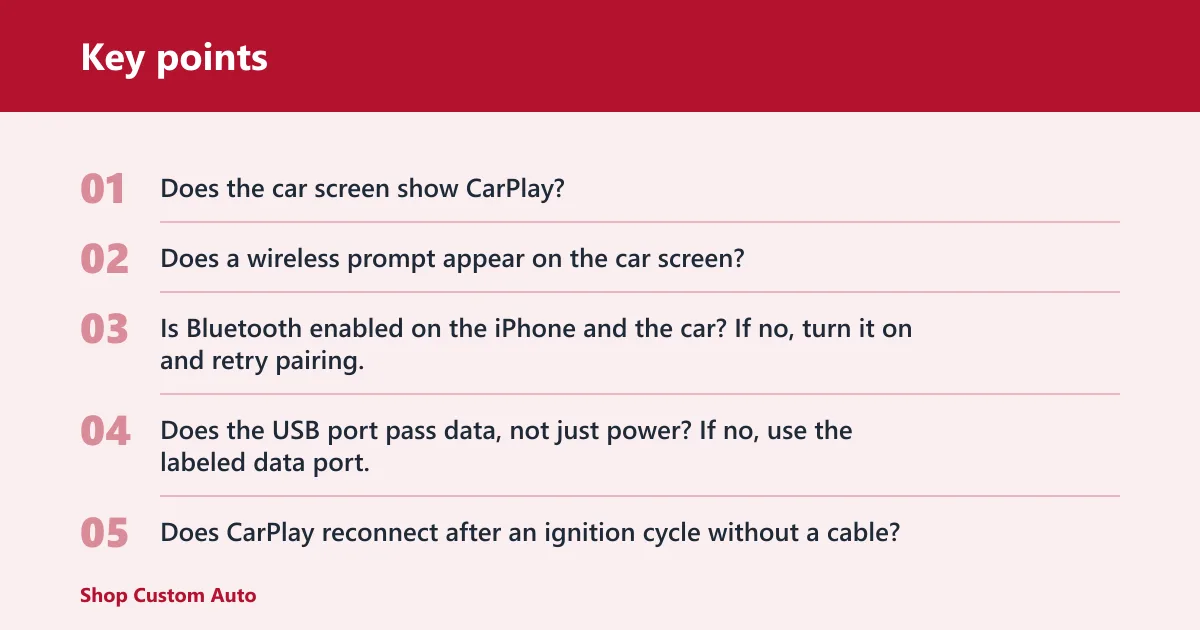
- Does the car screen show CarPlay? If no, stop: the vehicle is not CarPlay-capable or the feature is disabled.
- Does a wireless prompt appear on the car screen? If no, treat the system as wired only until proven otherwise.
- Is Bluetooth enabled on the iPhone and the car? If no, turn it on and retry pairing.
- Does the USB port pass data, not just power? If no, use the labeled data port.
- Does CarPlay reconnect after an ignition cycle without a cable? If no, the system is not keeping the wireless link alive.
If that didn’t work, try this next
Remove the car from Settings > Bluetooth on the iPhone, forget the phone in the infotainment system, then pair again from the car’s phone menu. If the system offers a software update in Settings > General > Software Update or a vehicle update screen, install it before testing again.
Suppose a compact SUV pairs by cable immediately, but never shows a wireless prompt. That points to wired CarPlay support without wireless support. The fix is not a different cable. It is verifying the trim sheet or head unit spec before you keep troubleshooting.
Common mistakes
Most false positives come from confusing Bluetooth, charging, and CarPlay. A car can play phone audio over Bluetooth and still not support CarPlay. A USB port can charge a phone and still fail to pass data. Treat those as separate checks.
Bluetooth audio is not proof
Bluetooth audio confirms only basic phone pairing. It does not confirm CarPlay, wireless CarPlay, or the CarPlay dashboard. If the infotainment screen never changes from the native audio screen to a CarPlay screen, the system is not giving you the proof you need.
Wrong USB port
Some vehicles have multiple ports, and only one carries data. If one port charges and another starts CarPlay, the charge-only port is the trap. Check the labels, then retest using the data-capable port.
Missing software or vehicle setting
Wireless support can be hidden behind an infotainment setting, a phone-pairing reset, or a software version in the head unit. If the car previously had CarPlay and now does not, look for a disabled connection setting before replacing hardware.
Factory support versus aftermarket support
Factory CarPlay support depends on the car’s infotainment hardware. Aftermarket stereo support depends on the new head unit. Those are different checks. A dealership add-on, retrofit, or replacement radio may add wireless CarPlay even when the original system did not.
Wireless CarPlay does not charge the iPhone by itself, and battery drain can be faster during long drives. If you need power, plug in a cable for charging while wireless CarPlay stays active. A vehicle with a wireless charging pad can also keep the phone resting there during use.
Frequently asked questions
How can I tell if my car supports wireless CarPlay?
Check the car’s phone or connection menu for a wireless CarPlay prompt, then confirm the iPhone shows the car in Settings > General > CarPlay. If the system works only when a cable is attached, the car likely supports wired CarPlay only.
What settings on my car screen indicate wireless CarPlay support?
Look for a phone menu that mentions CarPlay, Apple CarPlay, or device pairing, plus a screen that confirms wireless setup. If the infotainment system only shows Bluetooth audio or a generic media list, that is not enough to prove CarPlay support.
Will wireless CarPlay still work if I charge my iPhone by cable?
Yes. You can keep wireless CarPlay active while plugging the iPhone into USB for charging. That setup is useful on longer drives because wireless CarPlay does not charge the phone on its own and can drain the battery more quickly.
What happens if my car supports CarPlay but not wireless CarPlay?
You still can use wired CarPlay through the correct data port and cable. The key is to stop expecting wireless pairing from a head unit that only supports cable connection. If you want wireless, the fix is a different head unit or an approved retrofit.