How to Add Wireless CarPlay to a Car with Wired CarPlay
Add wireless CarPlay with a CarPlay-to-wireless adapter that matches your car’s USB CarPlay port. If the car only offers factory wireless CarPlay or a locked infotainment stack, the answer is no. Pick the wrong adapter and you can lose audio stability, steering wheel controls, or the connection entirely. This guide covers compatibility checks, setup steps, feature retention, and the edge cases that make the upgrade worth it.
Can you add wireless CarPlay without replacing the head unit?
If your car already has wired CarPlay, a wireless adapter is usually the simplest path. It uses the vehicle’s USB CarPlay connection, then uses Bluetooth for the first pairing step before switching to wireless on later drives. The catch is compatibility: the adapter has to match the exact port and the head unit has to allow CarPlay data, not just charging.
Factory wired CarPlay systems
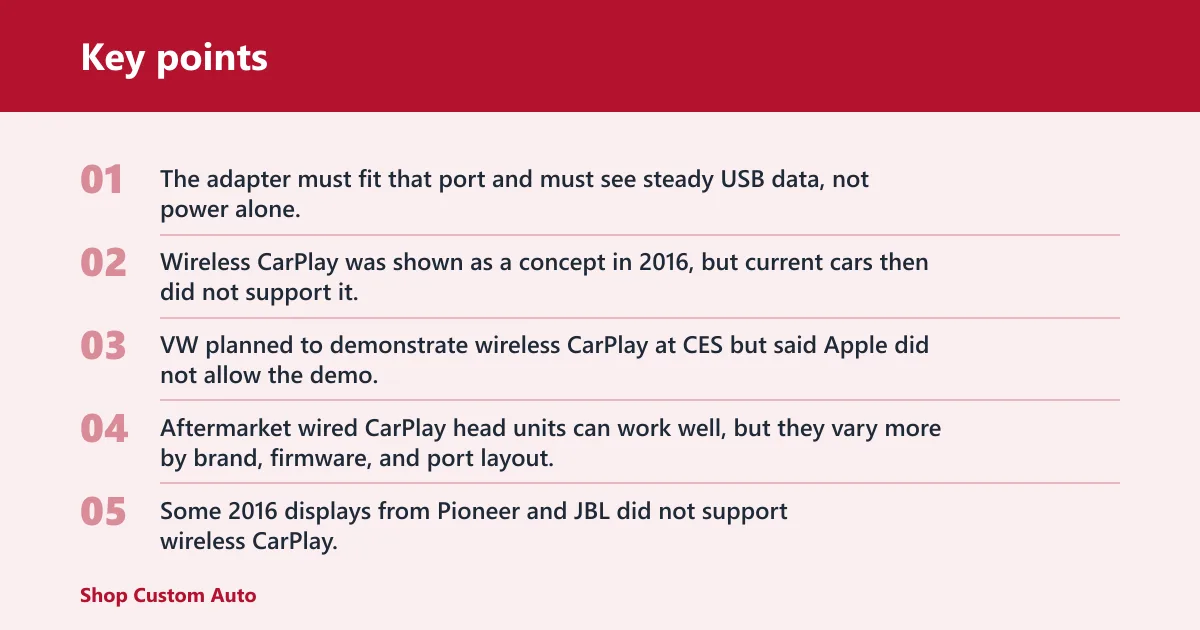
Factory wired CarPlay head units are the easiest starting point because the car already routes CarPlay through one USB port for data and power. The adapter must fit that port and must see steady USB data, not power alone. If the port only charges intermittently or drops data when the phone changes orientation, adapter behavior can be unreliable.
Wireless CarPlay was shown as a concept in 2016, but current cars then did not support it. VW planned to demonstrate wireless CarPlay at CES but said Apple did not allow the demo. Those early limits are why many older factory systems still need an adapter or a head-unit swap today.
Aftermarket wired CarPlay systems
Aftermarket wired CarPlay head units can work well, but they vary more by brand, firmware, and port layout. Some 2016 displays from Pioneer and JBL did not support wireless CarPlay. Alpine introduced a wireless CarPlay aftermarket system in 2017 for a suggested price of $900, using Bluetooth for connection. That shows wireless support can be built in, but it is not automatic on every aftermarket screen.
Some newer aftermarket units already support wireless CarPlay without an add-on adapter. Alpine’s 2019 iLX-W650 had a 7-inch anti-glare capacitive touchscreen and a chassis measured 2.4 inches deep. Alpine’s 2021 iLX-F409 had a 9-inch capacitive touchscreen, and the 2022 Halo receiver had an 11-inch capacitive touchscreen. Those are replacement options, not adapter cases.
When an adapter is the wrong fit
An adapter is the wrong fit when the head unit blocks third-party devices, when the USB port cannot pass CarPlay data reliably, or when the car already has factory wireless CarPlay. It is also the wrong buy if the screen itself, microphone path, or camera timing already feels off and you want a full system reset rather than a workaround.
What you’ll need
- A wireless CarPlay adapter that matches your car’s USB-A or USB-C CarPlay port, or includes the correct cable.
- An iPhone that supports CarPlay and has Bluetooth turned on.
- Your car parked with ignition on or in accessory mode.
- The current CarPlay USB port, not a random charge-only port.
- CarPlay enabled on the head unit if the system has separate menu toggles.
- A few minutes for the first pairing sequence.
How to set up a wireless CarPlay adapter
First-time setup is a short pairing sequence, then future drives should reconnect automatically. Pair through Bluetooth first, then let the adapter hand off to wireless CarPlay. If the phone sees Bluetooth but the screen never switches, the port, firmware, or compatibility is the problem.
- Confirm the USB port. Use the USB-A or USB-C port that already runs wired CarPlay. If the adapter needs a matching plug or cable, use that exact connector so the device can pull both power and data from the correct port.
- Plug in the adapter. Insert the dongle into the car’s CarPlay USB port and wait for its status light or prompt. Do not use a charge-only socket, because power without stable data can break the handoff even if the adapter lights up.
- Open iPhone Bluetooth settings. Go to Settings > Bluetooth and pair with the adapter as prompted. 9to5Mac describes the first pairing step as Bluetooth from the Settings app, which is the setup stage, not the full CarPlay link.
- Approve CarPlay prompts. Follow any on-screen request on the iPhone or head unit to allow CarPlay, contacts, and notifications. If the phone asks for confirmation, accept it so the adapter can finish the handoff.
- Reconnect on the next drive. Leave Bluetooth on, start the car again, and let the adapter reconnect by itself. A working adapter should reconnect automatically after the first pairing, so the iPhone can stay in your pocket once the system settles.
Say your iPhone pairs by Bluetooth and the adapter shows as connected, but the dashboard never switches to CarPlay. That usually points to a data-path issue, not a phone problem. The simplest next check is the original USB CarPlay port, then the adapter firmware or port compatibility.
CarPlay compatibility and setup table
| Head unit type | USB port type | First-time pairing method | Expected auto-connect behavior | Steering wheel control support | Common failure symptoms |
|---|---|---|---|---|---|
| Factory wired CarPlay | USB-A or USB-C CarPlay port | Bluetooth pairing from iPhone Settings, then CarPlay approval | Reconnects automatically if the port stays stable | Usually works for volume, track skipping, and voice input on compatible systems | Phone pairs, but screen never switches; random disconnects; charging works but data fails |
| Aftermarket wired CarPlay | USB-A or USB-C, sometimes with a short pigtail lead | Bluetooth pairing from iPhone Settings, then on-screen confirmation | Should reconnect after startup if the unit allows wireless CarPlay add-ons | Usually works if the head unit already maps those controls to CarPlay | Adapter powers up, but the unit rejects it; lag; camera or audio timing changes |
| Factory wireless CarPlay | No adapter needed | Built-in wireless pairing | Automatic by design | Usually supported by the head unit | No need for a wireless adapter; buying one may add clutter without benefit |
| Locked infotainment stack | USB port may be charge-only or limited | Often blocked or incomplete | Unreliable or unavailable | May not be exposed to CarPlay at all | Adapter not recognized; CarPlay app never launches; pair succeeds but interface never appears |
Will your controls and features still work?
Steering wheel controls usually keep working on compatible systems, but that is not universal. A wireless adapter generally passes through the functions the head unit already supports, including volume, track skipping, and voice input. It does not add missing hardware features or fix a weak factory implementation.
Steering wheel controls
On supported systems, the buttons should continue to work after setup. That includes volume changes, track skipping, and voice input. If those controls work in wired CarPlay but fail after the adapter is installed, the adapter or head unit is likely mishandling the control mapping.
Microphone and voice input
Microphone quality usually depends on the car’s original hardware, not the adapter alone. A wireless adapter can preserve the path the factory system already uses, but it cannot improve a noisy cabin mic or a poor factory echo-cancel setup. If voice commands sound delayed or far away, expect the same result as wired CarPlay unless the head unit has its own processing issue.
Reverse camera and display behavior
Reverse camera timing and overlay behavior should match the head unit’s CarPlay support, but some systems handle the switch to camera view faster or slower once an adapter is involved. If the screen wakes late, cuts audio oddly, or returns to CarPlay with a delay, that is a head-unit behavior issue more than a phone issue.
A common first-timer mistake is assuming that once wireless CarPlay is added, every factory screen shortcut, steering-wheel button, and voice-command behavior will work exactly the same as it did with the wired setup. If the car already has a slow camera handoff or weak microphone pickup, a wireless adapter usually preserves that behavior instead of replacing it.
When to buy an adapter versus replace the head unit
An adapter is the better buy when the car already has working wired CarPlay, the USB data path is stable, and you mainly want to avoid plugging in every time. Replacing the head unit makes more sense when the screen, mic path, camera timing, or software support is already poor. Adapter pricing can be much lower; 9to5Mac notes a wireless CarPlay adapter can be as cheap as $43.99.
Buy an adapter
- Your car already has wired CarPlay on a known working USB port.
- Bluetooth pairing is available and the iPhone stays on a supported iOS version.
- You want the cheapest path to automatic reconnection.
- You are fine keeping the factory screen and its current feature set.
Replace the head unit
- The current unit is locked, flaky, or inconsistent with CarPlay data.
- You want a larger or newer display with built-in wireless CarPlay.
- You want a full hardware refresh, not a plug-in fix.
- You accept the higher cost and possible professional installation.
Picture a truck with factory wired CarPlay on USB-C, a stable port, and good steering wheel controls. A wireless adapter is the practical choice. Now picture a compact car with a flaky aftermarket screen that drops CarPlay whenever the cable moves. That is the point where a new wireless head unit starts to make more sense.
Common mistakes
Most problems come from skipping the compatibility check, not from CarPlay itself. The adapter must match the port type and the port must carry CarPlay data, not just power. Bluetooth is only part of the setup, so a successful pair in iPhone settings does not guarantee the screen will launch CarPlay.
- Check the exact port. Confirm whether the car uses USB-A or USB-C for CarPlay, and whether the adapter needs a matching plug or a short cable. A charging port that is not the CarPlay port will not work.
- Verify the data path. If wired CarPlay drops out now, fix that before buying an adapter. Unstable USB data usually becomes worse, not better, once a dongle is added.
- Keep Bluetooth on. The first pairing uses Bluetooth from Settings > Bluetooth, so turning it off later breaks the reconnect sequence.
- Match the iPhone software. Make sure the iPhone still supports CarPlay and is on a current iOS version the adapter vendor lists. Older firmware can cause pairing loops or missing prompts.
Keep the original CarPlay port clean, seated, and unchanged once the adapter works. If the adapter depends on a specific USB port, moving it to a different socket later can break the whole setup.
Frequently asked questions
How do I add wireless CarPlay to a car that already has wired CarPlay?
Use a wireless CarPlay adapter that plugs into the car’s existing CarPlay USB port, then pair the iPhone through Settings > Bluetooth. After that, the adapter should reconnect automatically on later drives, so you can leave the phone in your pocket.
Do wireless CarPlay adapters actually work?
Yes, when the head unit already supports wired CarPlay and the USB data path is stable. The common failure mode is not the phone itself; it is a port that powers the adapter but does not pass data reliably enough for the handoff.
Will a wireless CarPlay adapter keep steering wheel controls working?
Usually, yes, on compatible systems. Volume, track skipping, and voice input are the control functions most commonly preserved. If those controls already fail in wired CarPlay, a wireless adapter will not fix the underlying head unit mapping.
How do you connect a wireless CarPlay adapter the first time?
Plug it into the CarPlay USB port, then go to Settings > Bluetooth on the iPhone and accept the pairing prompt. After that, confirm the CarPlay approval on the screen if the unit asks for it. The first setup is Bluetooth plus on-screen authorization, not Bluetooth alone.
Can I make wired CarPlay wireless without replacing the head unit?
Yes, if your current wired CarPlay system is compatible with an adapter. If the head unit is locked, the port is charge-only, or the data connection is unstable, the adapter path is weak and a replacement head unit may be the better long-term fix.
Is wireless CarPlay cheaper than buying a new wireless head unit?
Usually, yes. 9to5Mac reports adapter pricing as low as $43.99, while aftermarket wireless head units are far more expensive and may need installation. The adapter is the lower-cost option when the existing screen and controls already work well.