What Do You Need to Use Wireless CarPlay?
Wireless CarPlay generally requires a compatible iPhone and a car or aftermarket unit that supports wireless CarPlay over Bluetooth and Wi-Fi; wired CarPlay alone is not enough. Miss one piece, and pairing fails, the phone keeps reconnecting, or you buy an adapter you did not need. This guide lists what is required, what is optional, and the usual blockers that stop wireless CarPlay even when wired CarPlay already works.
Wireless CarPlay checklist
Wireless CarPlay is a readiness check, not a guess. You need CarPlay support in the vehicle, a compatible iPhone, Bluetooth on for pairing, and in some cars a first-time USB data connection before the system moves to wireless mode. If the phone can only charge through a port, that port will not finish setup. Apple’s setup steps also note that some vehicles may require the car to be in wireless CarPlay mode and the iPhone to have Bluetooth and Wi-Fi enabled. (Apple Support)
CarPlay support in the vehicle
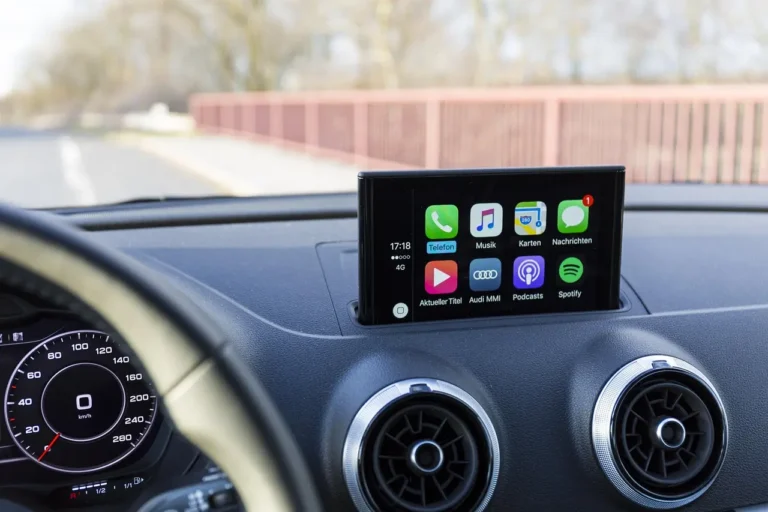
CarPlay is Apple’s iPhone-to-infotainment interface. It appears on the car’s infotainment display and can handle phone calls, text messaging, GPS navigation, audio, and calendaring. The vehicle head unit must support CarPlay, and wireless use is a separate feature from wired use. Use this as the first pass/fail check before you troubleshoot the phone.
Compatible iPhone and iOS
For CarPlay in general, Apple supports iPhone 5 and later. For wireless CarPlay, Apple’s support documentation says the vehicle must also support wireless CarPlay and the iPhone must be set up correctly; the wireless feature itself is not the same as basic wired compatibility. If the phone is too old, has restricted settings, or is missing software support, the connection may stop before it starts. (Apple Support)
Bluetooth on both devices
Bluetooth must be active on the iPhone and in the car for wireless pairing. It does not carry the full CarPlay session by itself, but it handles setup and connection management. If either side has Bluetooth off, wireless CarPlay usually cannot start. Apple’s setup flow places Bluetooth at the center of the initial pairing process. (Apple Support)
USB data port or first-time setup
Some cars may need a USB data port for first-time setup, even if later use is wireless. Not every USB port transmits data. A charging-only port can power the phone but still fail to complete CarPlay setup. Many data ports are marked with icons, so the port label matters more than the shape of the socket. Manufacturer guidance commonly distinguishes between data-capable and power-only USB ports. (MotorTrend)
Does your car support wireless CarPlay?
Check the infotainment menu first. If the head unit lists wireless CarPlay, smartphone projection, or a wireless phone pairing option, that is a strong sign. If the car only mentions wired CarPlay through USB, it may still support CarPlay without supporting wireless CarPlay. Those are different features. Start here before you look at adapters or settings in the phone.
How to check the infotainment menu
Open the car’s settings or phone/projection menu and look for a CarPlay option that mentions wireless pairing. Some systems ask whether to use USB or wireless CarPlay when the phone connects. If the screen only shows a USB CarPlay path, wireless may not be built in. For a quicker screen-by-screen check, use this car support wireless CarPlay how to check guide in the vehicle and compare the menu labels against the owner’s manual.
Why wired CarPlay does not prove wireless support
A car can support wired CarPlay and still not support wireless CarPlay. That is one of the most common mistakes. The USB connection proves that the car can display CarPlay through a cable, but it does not confirm that the head unit has the Bluetooth and wireless features needed for cable-free use. Wired CarPlay is a compatibility baseline, not proof of wireless readiness.
Say your sedan has CarPlay through the center console USB port, but the infotainment screen never offers a wireless pairing prompt. That setup still counts as wired CarPlay only. You may need an aftermarket wireless adapter or a different head unit if you want cable-free use. If you are comparing those paths, this wired vs. wireless CarPlay explanation can help separate the two requirements.
Signs your car may need an upgrade or adapter
If the system pairs by cable every time, never remembers the phone for wireless use, or lacks a wireless CarPlay option in settings, the vehicle may need an upgrade or an add-on adapter. Factory wireless CarPlay is cleaner, but an adapter can be the practical fix when the car supports wired CarPlay only. For upgrade decisions, start with this wireless CarPlay how it works overview, then compare it with your head unit’s menu and USB capabilities.
Does wireless CarPlay need Bluetooth?
Yes. Bluetooth is required for wireless pairing, and it must be enabled on both the iPhone and the car. Wi-Fi may then handle part of the data path behind the scenes, depending on the vehicle, but Bluetooth is the piece that gets the connection started and recognized. Apple’s setup instructions explicitly call for Bluetooth and Wi-Fi to be on. (Apple Support)
Bluetooth during pairing
During setup, Bluetooth links the iPhone and the head unit so they can find each other and exchange pairing prompts. If Bluetooth is off, the car may never see the phone as a CarPlay device. This is why wireless CarPlay can fail even when the phone is otherwise working normally. It is a common blocker because the system looks “close” to ready but never completes discovery.
Where Wi-Fi fits
Wireless CarPlay does not mean “Bluetooth only.” In many vehicles, Wi-Fi is used after pairing or behind the scenes while Bluetooth handles the initial handshake. That split matters. Bluetooth is for discovery and pairing; Wi-Fi often carries the heavier wireless connection once the session is active. Apple’s documentation reflects that both radios are part of the setup flow. (Apple Support)
What to check on the iPhone and head unit
On the iPhone, confirm that Bluetooth is on and that the phone can join the car when prompted. On the head unit, confirm that wireless CarPlay or wireless projection is enabled, if that setting exists. If the car asks you to choose USB or wireless CarPlay, that is a sign the system supports both paths. If you are still mapping the menu options, check the car support wireless CarPlay setup article before changing unrelated settings.
Suppose a compact SUV shows the CarPlay prompt on the screen, but the iPhone never receives the pairing request. That usually points to Bluetooth being off on one side or to an older software setting that blocks wireless pairing. The fix is usually a settings check, not a new cable.
Do you need a cable the first time?
Sometimes. Some cars begin with a wired USB setup and then move to wireless use after the first pairing. Others can pair wirelessly from the start. If the car requires USB first, the port must be a data port, not a charge-only port, or the setup will stall. Apple notes that some vehicles need the car to be started, the iPhone unlocked, and the setup prompts accepted before wireless mode is available. (Apple Support)
USB data port vs charging-only port
A USB data port can pass information between the iPhone and the head unit. A charging-only port cannot. That is the common blocker in cars with multiple USB outlets. The phone may charge, but CarPlay still will not load if the port lacks data support. Manufacturer documentation often distinguishes these ports in the owner’s manual or by icon, which is why the label matters more than the connector shape. (MotorTrend)
How to identify the right port
Look for icons beside the port or in the owner’s manual. Some manufacturers mark data-capable ports with a phone, screen, or CarPlay symbol. If the port is only intended for charging, the system may power the phone without ever launching CarPlay. If the port list is unclear, try the one specifically labeled for infotainment or media rather than the one labeled USB charging.
When setup starts wired and then goes wireless
In some vehicles, the first connection uses USB, the phone confirms the pairing, and then the system remembers the device for later wireless use. That is normal. The cable is just the setup tool, not the permanent connection. Once paired, the car should start CarPlay automatically when the phone is inside the vehicle. If it does not, the car may have saved the phone for Bluetooth only rather than full wireless CarPlay.
Wireless CarPlay charging plan
Wireless CarPlay can drain the iPhone battery quickly because the phone is handling navigation, audio, messaging, and wireless communication at the same time. Wireless CarPlay typically does not charge the phone by itself. Apple’s support materials recommend keeping the iPhone charged if you expect extended use, and manufacturers often advise a separate charging plan for longer drives. (Apple Support)
Wireless charging pad if available
The easiest fix is a wireless charging pad built into the car or added separately, if the phone supports that type of charging. It keeps the phone powered while CarPlay stays wireless. This is the cleanest option when the car already has a charging tray or pad near the console. It is an optional convenience, not a setup requirement, but it reduces battery anxiety fast.
USB cable backup when no charger is built
If there is no wireless pad, plug the iPhone into a USB power source while still using wireless CarPlay, if the car allows it. A USB cable is the backup plan, not a contradiction. The phone can remain on wireless CarPlay while receiving power from a separate charging connection. Some drivers use this as the simplest way to avoid battery drain without giving up the wireless interface.
A common first-timer mistake is to assume the CarPlay connection itself will keep the battery up. It will not. If the phone starts at 78% and you use maps, music, and messaging for a long drive, the percentage can fall fast unless you have a charging plan in place. That is why charging belongs on the checklist even though it is not required to establish the connection.
How to connect to CarPlay wirelessly
Turn on Bluetooth and Wi-Fi on the iPhone, then start the vehicle and open the CarPlay or phone menu on the infotainment screen. Accept the pairing prompts on both the phone and the screen. Once the car remembers the phone, CarPlay should start automatically when you get back in. Apple’s setup flow puts Bluetooth, Wi-Fi, and in-car prompts in that order. (Apple Support)
Turn on bluetooth and Wi-Fi
Bluetooth is required for pairing, and Wi-Fi may be part of the wireless connection afterward. Keep both enabled on the iPhone before you start. If the car has a wireless setting, make sure it is switched on in the head unit too. That simple pass/fail check eliminates many setup failures before you dig into the menus.
Accept prompts on the phone and screen
The pairing prompts usually appear on both the iPhone and the infotainment screen. Confirm the prompts on each device and follow any on-screen steps. If the system asks whether you want USB or wireless CarPlay, choose the wireless option when available. If the prompt never appears, go back to Bluetooth and the wireless CarPlay setting on the car side first.
Confirm the CarPlay start screen
After pairing, the car should switch to the CarPlay interface on the infotainment display. That screen may replace the native infotainment view until you switch back. If the phone connects but the display stays on the car’s own menu, check the CarPlay setting in the head unit. A remembered Bluetooth connection without the CarPlay screen usually means the car saved the phone for calling, not full projection.
Wireless CarPlay readiness table
This checklist separates what you must have from what is optional and what commonly blocks setup. Use it to confirm wireless CarPlay support in about a minute before you buy an adapter or chase settings that will not fix the real issue.
| Requirement | Blocker label | Why it matters | How to verify in 60 seconds |
|---|---|---|---|
| Car infotainment system supports CarPlay | Must have | CarPlay needs the vehicle display and head unit to act as the interface for the iPhone. | Open the infotainment menu and look for CarPlay, smartphone projection, or a wireless CarPlay setting. |
| Wireless CarPlay support, not only wired CarPlay | Must have | A car can support wired CarPlay but still lack wireless pairing. | Check the menu or owner’s manual for wireless CarPlay specifically, not just CarPlay. |
| Compatible iPhone and iOS | Must have | The iPhone must be able to run CarPlay and pair with the vehicle. | Confirm the phone is an iPhone 5 or later with iOS 7.1 or newer. |
| Bluetooth on the iPhone | Must have | Bluetooth is needed for wireless pairing. | Open iPhone settings and confirm Bluetooth is on. |
| Bluetooth on the car | Must have | The car must also be discoverable for pairing. | Open the head unit’s phone or Bluetooth menu and confirm wireless pairing is enabled. |
| Wi-Fi behavior, if the vehicle uses it | Optional, model-dependent | Some systems use Wi-Fi behind the scenes after pairing. | Look for a wireless CarPlay setup prompt or a Wi-Fi-related CarPlay setting in the head unit. |
| USB data port for first-time setup, if required | Common blocker | Some cars need a data-capable USB connection for initial pairing. | Find a port marked with an icon; avoid ports that are only labeled for charging. |
| Charging plan | Common blocker | Wireless CarPlay does not charge the phone by itself and can drain battery quickly. | Check for a wireless charging pad, or keep a USB cable available as backup. |
| Adapter for cars with wired-only CarPlay | Optional upgrade | An adapter can add wireless use when the car already has wired CarPlay but no factory wireless option. | Confirm the car supports wired CarPlay first, then compare adapter compatibility before buying. |
Frequently asked questions
What do you need to use wireless CarPlay?
You need a compatible iPhone, a car or aftermarket unit that supports wireless CarPlay, Bluetooth turned on for both devices, and in some vehicles Wi-Fi support behind the scenes. Some cars also need a USB data port for first-time setup. Wireless CarPlay does not charge the phone by itself, so a charging plan is a practical extra, not an optional luxury. (Apple Support)
Does my car support wireless CarPlay?
Check the infotainment menu for wireless CarPlay, wireless projection, or a phone pairing option that mentions cable-free use. If the car only supports wired CarPlay through USB, that does not automatically mean it supports wireless CarPlay. The two features are related, but not identical. If the menu wording is vague, look for a wireless-specific setting instead of assuming the USB port tells the whole story.
Does carPlay use Wi-Fi?
Often, yes, but not in the same way people expect. Bluetooth is used for pairing, while Wi-Fi may carry the wireless connection afterward depending on the vehicle. That is why both Bluetooth and wireless-related settings matter when you set up the phone and the head unit. Apple’s setup instructions call for both radios to be on during wireless setup. (Apple Support)
Do I need a cable the first time I set up wireless CarPlay?
Sometimes. Some vehicles start with a USB connection and then switch to wireless use after pairing is complete. If that happens, the port must be a USB data port. A charging-only port can power the phone but will not carry the setup data needed for CarPlay. Apple and vehicle documentation both point to the first connection as model-dependent. (Apple Support)
Will wireless CarPlay drain my iPhone battery?
It can drain the battery faster than you expect because the phone is staying active for navigation, audio, messaging, and wireless communication. The practical fix is a charging plan. Use a wireless charging pad if the car has one, or keep a USB cable ready as backup. The battery drain risk is one reason charging belongs in the readiness checklist even though it is not a pairing requirement.
Can I charge my iPhone while using wireless CarPlay?
Yes. You can keep using wireless CarPlay while plugging the iPhone into USB for power, if the car allows it. A wireless charging pad is another option. The important point is that charging and wireless CarPlay are separate functions, so one does not block the other. If your car’s USB port is data-only or power-only, confirm it can supply charging without breaking the CarPlay session.