How to Set Up Wireless CarPlay on Your iPhone
Turn on Bluetooth and Wi‑Fi, start the car, and if the vehicle asks for a first-time cable connection, plug in with a data-capable USB cable before switching to wireless. If the iPhone never shows the CarPlay prompt, the usual fault is a missed setup step on the phone or a car that has not entered pairing mode. This checklist separates iPhone settings, car settings, and the exact fix when the wireless prompt never appears.
What you’ll need
- An iPhone with Bluetooth turned on
- Wi‑Fi turned on for the iPhone
- Siri turned on
- A CarPlay-compatible car or aftermarket stereo
- A data-capable USB cable if the car needs a wired first setup
- The correct cable type for the phone and port is usually Lightning or USB-C.
- Access to the car’s voice command button, touchscreen, or USB port
Do you need Bluetooth and Wi‑Fi on?
Yes. Bluetooth handles the first wireless handshake, and Wi‑Fi carries the CarPlay data stream after pairing. Keep both on before you try to connect. If the iPhone cannot see the car, the setup prompt often never appears.
Turn on Bluetooth on the iPhone
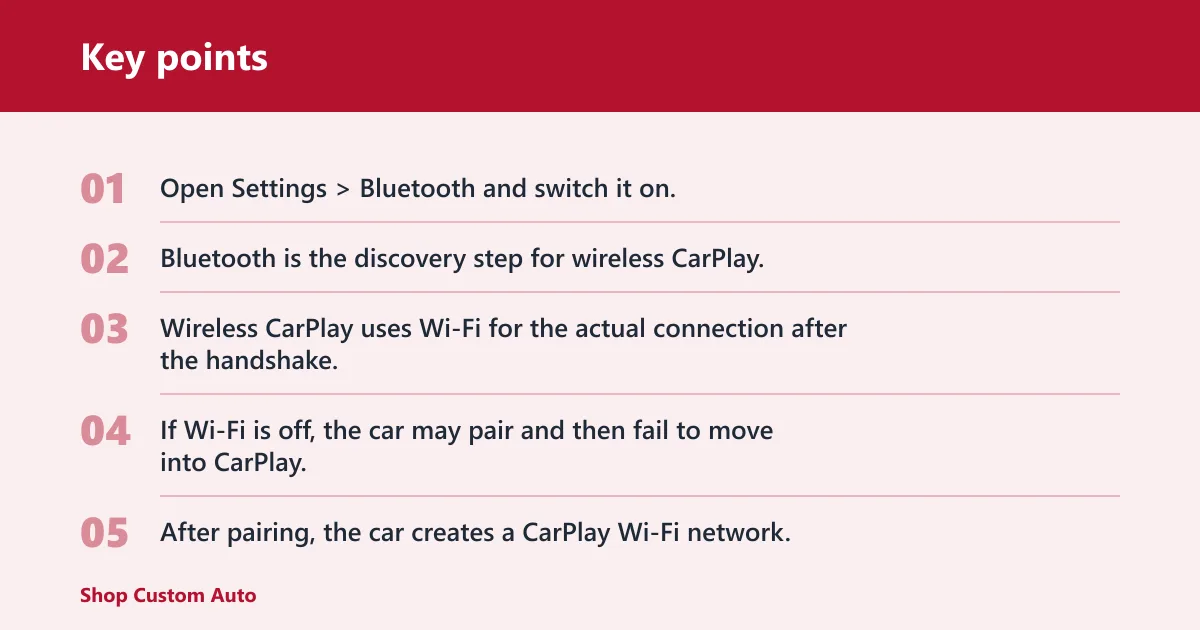
Open Settings > Bluetooth and switch it on. Bluetooth is the discovery step for wireless CarPlay, so the car and iPhone need it active before the prompt can appear.
Turn on Wi‑Fi on the iPhone
Open Settings > Wi‑Fi and switch it on. Wireless CarPlay uses Wi‑Fi for the actual connection after the handshake. If Wi‑Fi is off, the car may pair and then fail to move into CarPlay.
Leave Auto-Join on for the CarPlay network
After pairing, the car creates a CarPlay Wi‑Fi network. Open Settings > Wi‑Fi, tap the Info button next to that network, and turn on Auto-Join. Apple says to check Auto-Join for the CarPlay network.
How do you set up wireless CarPlay on your iPhone?
Start the car, use the iPhone, and follow the car’s prompt or voice button pairing flow. Some systems use the steering-wheel voice command button; others show a touchscreen prompt. Wireless setup can begin differently by vehicle, so the first screen may not look the same in every car.
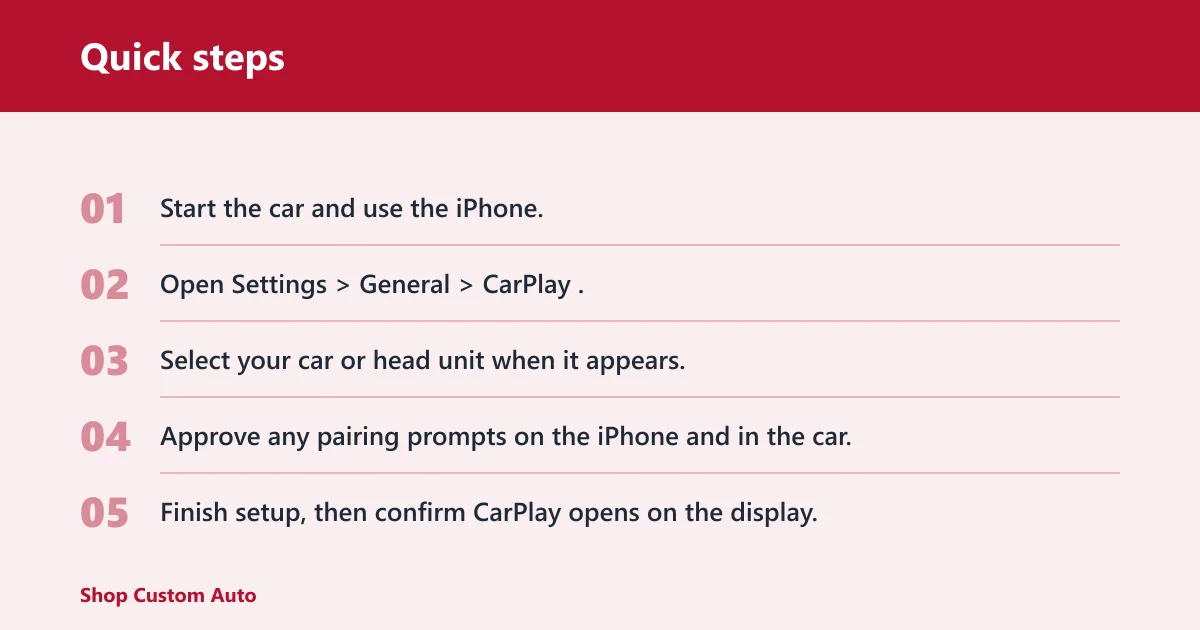
- Start the car and use the iPhone.
- Open Settings > General > CarPlay.
- Select your car or head unit when it appears.
- Approve any pairing prompts on the iPhone and in the car.
- Finish setup, then confirm CarPlay opens on the display.
Apple says to start the car before setting up CarPlay. For some systems, you may also need the car in wireless or Bluetooth mode before pairing begins. (Apple)
If the car supports wireless CarPlay but the iPhone still sits on the pairing screen, the fix is usually simple: keep Bluetooth and Wi‑Fi on, use the iPhone, and wait for the car to finish pairing mode before tapping anything else.
What if your car only works with a cable?
Use a data-capable USB cable and connect to the correct USB port first. If the vehicle supports wired CarPlay only, a cable is usually required each time. If it supports both wired and wireless CarPlay, Apple says plugging in first can trigger wireless use on later drives.
- Use a cable that can carry data, not a charge-only cable.
- Match the cable to the phone: Lightning or USB-C.
- Plug into the car’s USB port, including ports marked with a CarPlay icon or smartphone icon.
- Open Settings > General > CarPlay if the car does not auto-open.
- After the wired setup finishes, disconnect and test wireless on the next drive if the car supports it.
Why won’t the wireless prompt appear?
Check the iPhone first, then the car’s pairing mode. The common failure point is that the phone never sees the vehicle, or the vehicle never enters the right mode to advertise CarPlay. If the prompt still does not appear, remove the old pairing and start over.
Check iPhone-side settings first
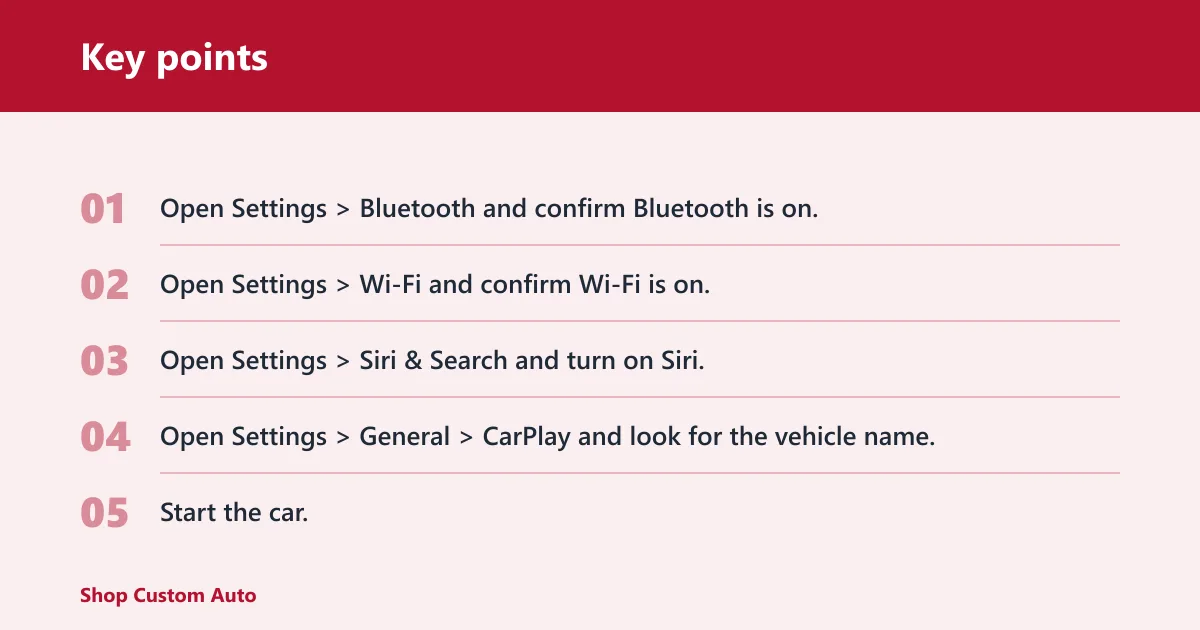
- Open Settings > Bluetooth and confirm Bluetooth is on.
- Open Settings > Wi‑Fi and confirm Wi‑Fi is on.
- Open Settings > Siri & Search and turn on Siri.
- Open Settings > General > CarPlay and look for the vehicle name.
Check car-side pairing mode next
- Start the car.
- Press and hold the steering-wheel voice command button if the car supports wireless CarPlay only.
- Open the car’s phone or connectivity menu and switch to wireless or Bluetooth pairing mode if that option exists.
- Use the touchscreen prompt if the head unit offers one.
Remove and re-pair if needed
- Open Settings > General > CarPlay on the iPhone.
- Select the car.
- Choose the option to forget or remove the car if it is listed.
- Restart the iPhone and the car, then try pairing again.
A common first-timer mistake is leaving Siri off and expecting CarPlay to appear anyway. In a car that uses a steering-wheel voice button, the phone may never finish setup until Siri is enabled in Settings > Siri & Search.
How do you turn on Auto-Join for CarPlay?
Open the CarPlay network’s information screen in Wi‑Fi settings and switch on Auto-Join. This keeps the iPhone ready to connect to the car’s network after the first pairing, which matters when the setup works once and then fails on the next drive.
- Open Settings > Wi‑Fi.
- Tap the Info button next to the CarPlay network.
- Turn on Auto-Join.
- Return to Settings > General > CarPlay and confirm the car still appears.
Where do you find CarPlay in iPhone settings?
Go to Settings > General > CarPlay. That is the main menu for selecting your car, managing the pairing, and opening Customize to reorder supported apps. If the car is missing there, the pairing has not completed or the car is not in the right mode.
Use Customize after pairing
Open Settings > General > CarPlay > your car > Customize to change the order of supported apps. This does not add unsupported apps, but it does let you move the ones CarPlay already allows.
Common mistakes
Most first setup failures come from small misses, not a bad system. Check the phone, the cable, and the car in that order.
- Using a charge-only cable: replace it with a data-capable USB cable.
- Skipping Siri: turn it on in Settings > Siri & Search.
- Leaving Wi‑Fi off: CarPlay needs Wi‑Fi for the data stream.
- Leaving Auto-Join off: open the CarPlay network’s Info screen and switch it on.
- Expecting one universal pairing flow: some cars begin with the voice button, some with a screen prompt, and some require a wired first setup.
Picture a head unit that supports both USB and wireless CarPlay. If you plug in once, complete the setup, and then disconnect, the next drive may switch to wireless only after the iPhone has joined the CarPlay network with Auto-Join enabled.
Frequently asked questions
How do I set up wireless CarPlay on my iPhone?
Turn on Bluetooth and Wi‑Fi, start the car, use the iPhone, then open Settings > General > CarPlay and select the vehicle. If the car requires it, begin with a USB connection first, then let later drives switch to wireless.
Do I need Bluetooth and Wi‑Fi on for wireless CarPlay?
Yes. Bluetooth handles the initial pairing step, and Wi‑Fi carries the CarPlay connection after that. Leave both on before you try again, then check Settings > Wi‑Fi for the CarPlay network and its Auto-Join setting.
Why won’t my iPhone connect to wireless CarPlay?
Check whether Bluetooth, Wi‑Fi, and Siri are on, then confirm the car is in pairing mode or wireless mode. If the prompt still does not appear, remove the car in Settings > General > CarPlay and pair again from the start.
Do I need to plug in first before wireless CarPlay works?
Sometimes. Apple says that if a car supports both wireless CarPlay and USB, plugging in first can trigger wireless use on later drives. If the car supports only wireless CarPlay, use the steering-wheel voice command button instead of a cable.
What should I do if CarPlay only works with a cable?
Use a data-capable USB cable, not a charge-only one, and confirm you are in the correct USB port. If the car supports wireless too, finish the wired pairing once, then verify Auto-Join for the CarPlay network in Settings > Wi‑Fi.
Why is my car not showing up in CarPlay settings?
Start the car first, use the iPhone, and keep Bluetooth and Wi‑Fi on. If the vehicle still does not appear in Settings > General > CarPlay, check the car’s pairing mode or consult the vehicle manual or manufacturer support for that head unit’s exact setup flow.
| Step | What the iPhone should show | What to do if it does not appear |
|---|---|---|
| Open CarPlay settings | Settings > General > CarPlay lists the car | Turn on Bluetooth and Wi‑Fi, start the car, then try again |
| Begin pairing | A CarPlay prompt or pairing request | Use the iPhone and check the car’s wireless or Bluetooth mode |
| Finish first connection | The car appears as connected in CarPlay settings | Use a data-capable USB cable if the car needs a wired first setup |
| Join the CarPlay network | The CarPlay Wi‑Fi network shows an Info button | Open its Info screen and turn on Auto-Join |
| Reorder apps | Customize appears under the car name | Finish pairing first, then return to Settings > General > CarPlay > your car > Customize |
| Car support type | What usually happens | Best first move |
|---|---|---|
| Supports wired only | CarPlay starts only through USB | Use a data-capable USB cable in the correct port |
| Supports wired and wireless | First pairing may begin by cable, then switch to wireless later | Plug in once, complete setup, then check Auto-Join for the CarPlay network |
| Wireless only | Pairing often begins with the steering-wheel voice command button | Press and hold the voice button, then finish pairing on the iPhone |